 PDFMonkey
Where PDFMonkey fits in a Zap #
A Zap starts when something happens in one of your apps. A form gets a new answer, a payment goes through, a deal is won. When that event calls for a document, PDFMonkey is the step in the middle: you design the template once, Zapier sends the data every time the Zap runs, and the next steps get the finished file.
It’s used for invoices and receipts after a Stripe payment, quotes and contracts sent on to e-signature, certificates for each participant, and reports built from rows in a spreadsheet. The trigger and the destination can be almost any app Zapier connects to:
 AirtableDatabases
 ShopifyeCommerce
 TypeformForms
 DocusignSignatures
 SalesforceCRM
 TallyForms
 LandbotMarketing
 DropboxStorage
 ChatGPTAI
Setting it up #
- Create your template in PDFMonkey, with the visual Builder or in code, and publish it.
- Add a PDFMonkey step to your Zap, choose Generate Document and connect your account.
- Pick your workspace and template, then map the fields from the earlier steps to your template variables.
- Use the document’s Download URL in the next step. Email by Zapier attaches the file for you, and storage apps like Google Drive or Dropbox save it.
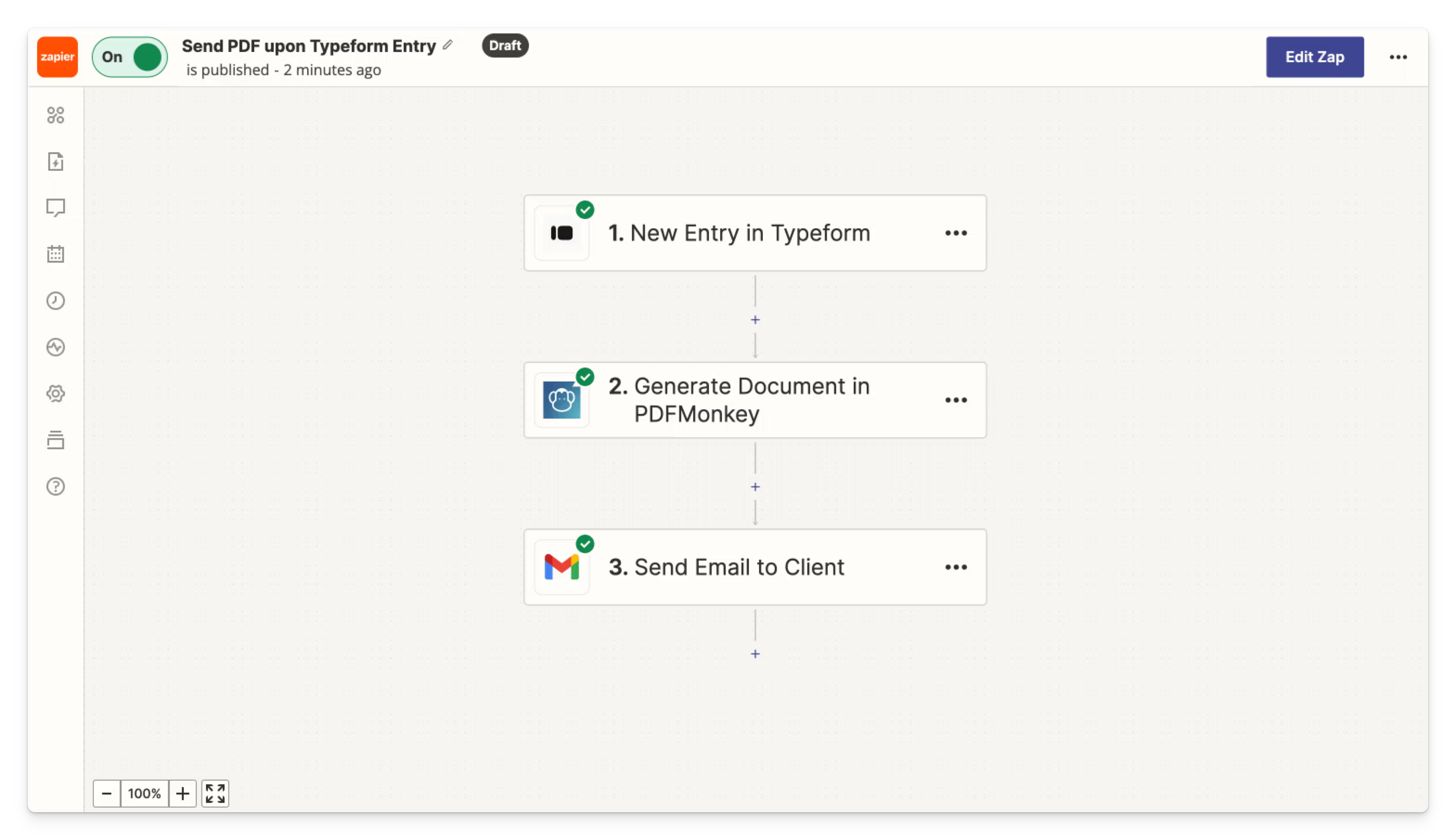
The download URL lasts one hour, so use it in the same Zap rather than saving it for later.
What’s in the app #
On the action side, Generate Document creates the file and Delete Document removes it once it’s stored elsewhere. Find Document is a search: it fetches a document you generated earlier. Generate Document also takes a custom filename, metadata and line items, so an invoice can carry all of its rows.
The Document Generated trigger is instant: it starts a Zap each time a document is ready, for every template or only the ones you pick. It’s the easy way to file every document in cloud storage or log it in a sheet, whatever generated it.
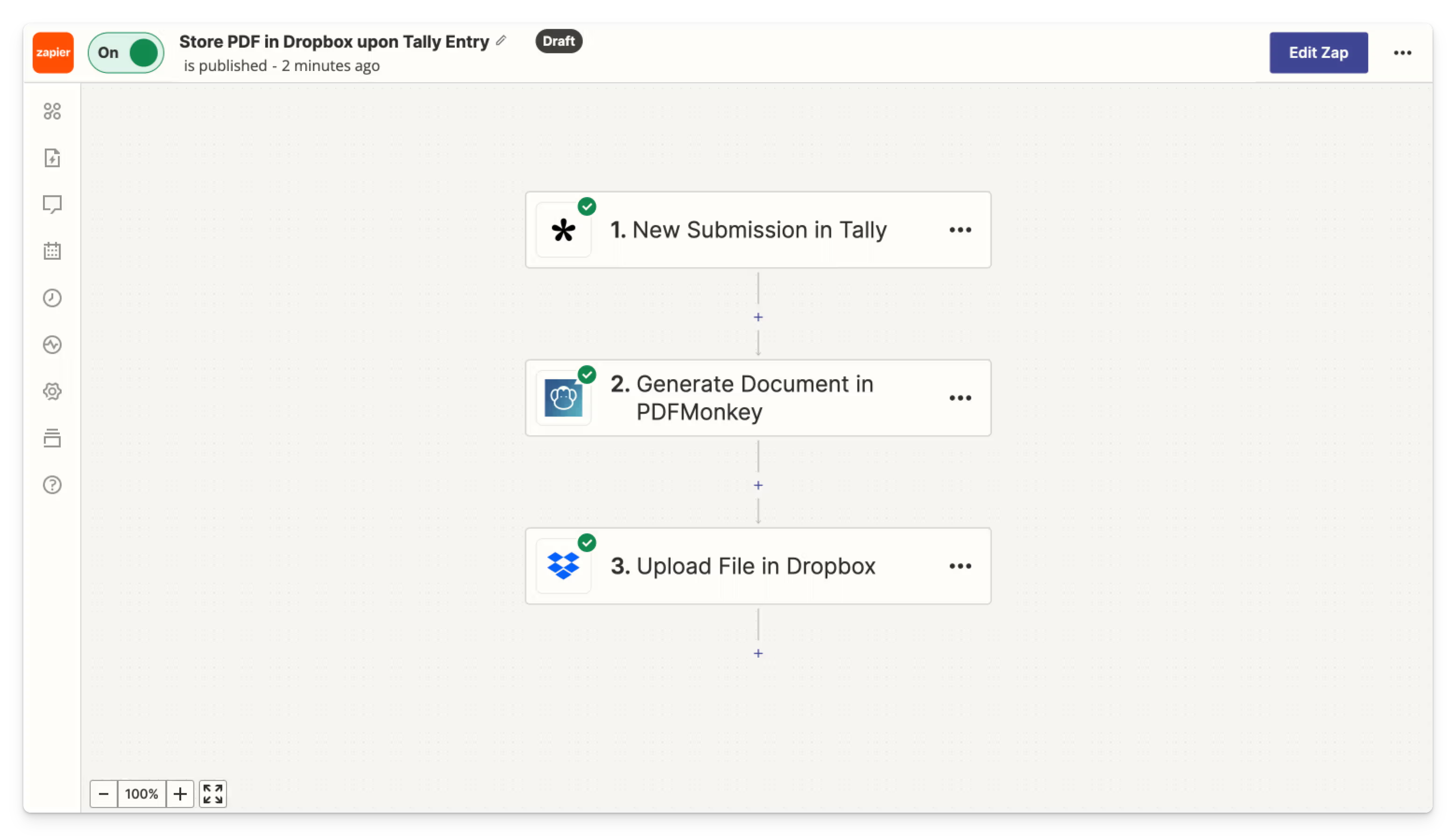
Our Zapier guide builds a full Zap step by step, from a Tally form to a PDF in someone’s inbox, and covers line items, custom JSON and the errors that come up along the way.
Create a free PDFMonkey account and add it to a Zap you already have. If something doesn’t behave the way you expected, write to us. We read everything.
FAQ #
Q1Is the PDFMonkey app on Zapier official?
Yes. We built it in 2019 and we maintain it. Search for PDFMonkey when you add a step to your Zap.
Q2Is there a free plan?
Yes. The Free plan includes 20 documents per month, forever, with no credit card required. Every new account also starts with a 30-day trial that includes 300 documents. Paid plans start at €5 per month with Starter (300 documents per month).
Q3Do I need to know HTML to design my template?
No. When you create a template, you pick one of two modes: the visual drag-and-drop Builder, or a Code template written in HTML, CSS and Liquid. A template uses one mode or the other, never both. Zapier sends the same data in both cases.
Q4What about long documents and Zapier's time limit?
Zapier gives each step about 30 seconds. Our app doesn’t race against that limit anymore. PDFMonkey tells Zapier when the document is ready, and the Zap picks up from there. The generation itself still has to fit within your plan’s time limit, listed on the pricing page.
Q5Can I generate images instead of PDFs?
Yes. PDF is the default, but a template with the Image output type produces WebP, PNG or JPG files. Your Zap doesn’t change.
Q6Where is my data hosted?
In the European Union. PDFMonkey’s application servers, file storage and rendering engines run in Paris, France, and its database runs in Frankfurt, Germany. A GDPR Data Processing Agreement is available.
Other no-code integrations #
PDFMonkey also works with Make, n8n, Bubble and Glide. If your data sits in a database or a spreadsheet, we have pages for Airtable and Google Sheets too.