How to Create Fillable PDF Forms (3 Methods)
TL;DR: You can create fillable PDF forms using Adobe Acrobat, free online tools, or a template-based generator. Fillable PDFs use the AcroForm standard to embed interactive fields — text inputs, dropdowns, checkboxes — directly inside the document. For client onboarding, a template-based approach lets you design one form and generate it automatically for every new client.
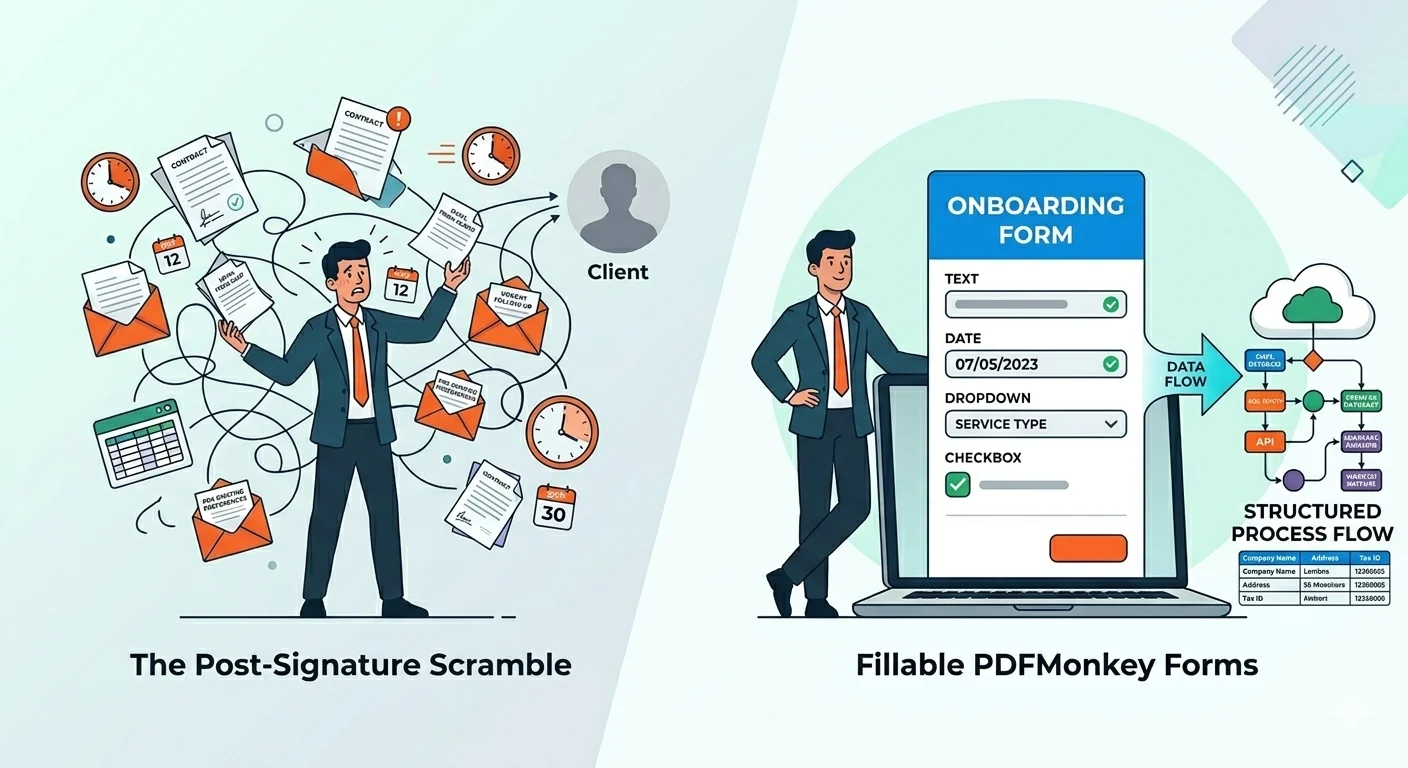
The Post-Signature Scramble: Why Onboarding Falls Apart
You just signed your first client. The contract is done, hands were shaken, and now — the real work begins.
You need their company name, billing address, tax ID, service preferences, and a dozen other details before you can start delivering. So you send an email. Then another. Then a spreadsheet. Then a follow-up because they forgot the phone number. Three days later, you are still chasing information that should have taken ten minutes to collect.
We have all been there. That gap between “deal closed” and “work started” is where client relationships quietly erode. The client feels neglected. You feel disorganized. And the longer it drags on, the less professional the whole thing looks.
Now picture the alternative: a deal closes, and the client receives a single, branded document with every field they need to fill in. Company name, contact details, service selection, start date, terms acceptance — all in one place. They complete it on their schedule, and you get structured data back without a single follow-up email.
That is what a well-designed onboarding form does. The format that makes it possible? The fillable PDF.
Whether you are a solo founder wearing all the hats or part of a twenty-person operations team, the pain is the same: scattered information, manual follow-ups, wasted time. What is true for a solo maker building their first client workflow is true for a large organization streamlining onboarding at scale.
Why Fillable PDFs Beat the Alternatives
If you have ever asked yourself “how do I make my PDF form fillable?”, the answer starts with understanding what fillable PDFs actually are — and why they outperform the alternatives for collecting client information.
A fillable PDF is not just a regular PDF with text boxes drawn on top. Under the hood, it uses the AcroForm standard to embed interactive fields directly inside the document: text inputs, dropdown menus, checkboxes, date pickers, radio buttons. Unlike a static PDF — essentially a digital printout — a fillable PDF lets the recipient type into structured fields without editing software.
This matters for onboarding. Consider a typical client intake form: a text field for company name, an email field for the primary contact, a dropdown for selecting a service type, a date field for the preferred start date, and a checkbox for accepting your terms. Each field enforces structure. An email field validates the format. A dropdown constrains choices. A required checkbox ensures nothing gets skipped.
And this is a crucial distinction: this article is about creating forms you send to clients to fill in — not about filling out forms yourself. You are the form designer. Your client is the form user.
Compare that to the alternatives. A web form works, but the link expires, the client cannot save progress, and it carries no branding. An email thread is chaos. A static PDF requires the client to print, fill by hand, scan, and send back.
Fillable PDFs give you the professionalism and portability of a PDF with the interactivity of a web form. Clients fill them on their own schedule, offline if needed, and you get clean, structured data back. The limitation? Creating them manually does not scale.
How to Create Fillable PDF Forms: 3 Approaches Compared
The best method depends on how often you send forms, how much control you need, and whether automation matters. Here are three approaches, each with honest trade-offs.
Method 1: Manual Creation with Adobe Acrobat
Adobe Acrobat Pro is the industry standard. You open a document, switch to form editing mode, and drag fields onto the page — text inputs, checkboxes, dropdowns, radio buttons, the full AcroForm specification.
The control is unmatched. Field validation rules, tab order, JavaScript for conditional logic, pixel-level precision. For internal forms you build once and use as-is, Acrobat is hard to beat.
The downsides are real. Acrobat Pro runs around $20-25 per month. Every form is a one-off: sending a personalized onboarding form to each new client means rebuilding every time. No automation, no CRM integration, no way to generate forms at scale.
Method 2: Free Online Tools
If you need a quick form without paying for software, free online tools let you create fillable PDF forms free online in minutes. Upload a PDF, drop in a few fields, download the result.
For basic use cases, this works. But the trade-offs add up: limited field types, little branding control, and the privacy question of uploading client documents to servers you do not control. No integration, no automation, no template reuse. For a one-time internal survey, fine. For repeated client-facing onboarding forms, they fall short.
Method 3: Template-Based Generation
There is a third approach that changes the equation entirely: design a template once, then generate a personalized fillable PDF for every new client automatically.
This is the paradigm shift from one-off creation to repeatable, automated generation. Instead of rebuilding a form each time, you create a single template with dynamic fields — placeholders that get filled with client-specific data when the form is generated.
PDFMonkey is built around this approach — and the distinction is not cosmetic, it is architectural. Most PDF tools treat form fields as decoration layered onto a finished document. A template-first system inverts that: the form is the document, with data and fields as first-class elements. The form you design today serves your hundredth client exactly as well as your first, without rebuilding anything. You design your onboarding template in the visual Builder — no code needed — place your form field markers where you want interactive fields to appear, and the system generates a branded, fillable PDF for each client. The template lives in your account. The data comes from your CRM, your spreadsheet, or a simple API call.
The result: every client gets a professional, personalized onboarding form. You never rebuild from scratch. And as your client base grows, the process stays the same — one template, unlimited forms.
Let me show you what this looks like in practice.
Comparison at a Glance
| Manual (Adobe Acrobat) | Free Online Tools | Template-Based (PDFMonkey) | |
|---|---|---|---|
| Cost | ~$20-25/mo (Acrobat Pro) | Free | Free tier available |
| Setup time | 30-60 min per form | 10-20 min per form | 1-2 hours initially, then minutes per form |
| Automation | None | None | Full (API + Zapier/Make) |
| Branding | Full control | Limited or none | Full control |
| Best for | One-off internal forms | Quick simple forms | Repeated client-facing forms |
Building a Client Onboarding Form, Field by Field
When we built PDF Forms, the first thing customers asked for was a way to collect client information without sending yet another web form link. They wanted something professional, branded, and offline-capable. Here is what that looks like in practice.
You start in your PDFMonkey template. Design the layout — your logo, your colors, your structure — then place form field markers where interactive fields should appear. Each marker is a short code that the system converts into a real AcroForm field when the PDF is generated. For example, [% data_form_field_text_company_name %] becomes a text input the client can type into.
Here is the full onboarding form we are building:
Company name — a text field. The client types their company name directly into the document.
Contact email — an email field with built-in validation. Enter “john@” without a domain and the form flags it.
Phone number — a phone field that formats input automatically, keeping your data clean.
Service type — a dropdown presenting your service options (Consulting, Development, Support). The client picks from a predefined list, so you get consistent data every time.
Start date — a date field for the preferred onboarding start date. No more parsing “sometime next month” from an email.
Terms acceptance — a required checkbox. The client cannot proceed without explicitly accepting your terms.
To activate form fields in your template, you set use_forms: true in your template settings. From there, every marker in your template becomes an interactive field in the generated PDF.
One thing I want to be upfront about: signature fields are not supported yet. If your onboarding flow requires a wet or digital signature, you will need a separate signing step for now. We are working on it, but I would rather tell you honestly than let you discover the gap mid-implementation.
What is supported: field validation for email and phone formats, required fields that must be completed before submission, and the full range of types — text, date, checkbox, dropdown, radio buttons, comb fields for structured input like tax IDs, and borderless fields for seamless design. See the PDF Forms documentation for the complete reference.
Advanced fillable PDFs can also include conditional logic — showing or hiding sections based on answers. That is a capability of the AcroForm standard itself (supported by tools like Adobe Acrobat), rather than a PDFMonkey-specific feature.
The fillable PDF form we created collects everything a client needs to provide for onboarding — in a single, branded document they can complete on their own time.
From One Form to an Automated Workflow
A single onboarding form is useful. An automated onboarding workflow is transformative.
Picture this: a deal closes in your CRM. PDFMonkey automatically generates a personalized onboarding form — pre-filled with the client’s name, contract details, service selection — and delivers it to their inbox. The client fills in the remaining fields, and the data flows back into your systems. No manual form creation. No copy-paste errors.
The practical path for most makers is no-code automation. Connect PDFMonkey to your existing tools through Zapier or Make, and build this workflow without writing a single line of code. New deal in HubSpot? Generate an onboarding form. Client completes it? Update your project management tool.
For teams with developer resources, the PDFMonkey API offers full programmatic control. But the beauty of the template-based approach is that the template — the design, the fields, the branding — stays in the hands of the person who owns the client relationship. The developer handles the plumbing. The operations lead handles the form.
The full list of integrations shows what you can connect today: CRMs, project management tools, payment platforms, and custom webhooks.
One template. One workflow. Every client gets the same professional experience.
Beyond Onboarding: Where Fillable PDFs Deliver Value
Client onboarding is the use case we have focused on, but fillable PDFs work anywhere you collect structured information from external parties.
Contracts and agreements — pre-fill terms, let the client confirm details in a branded document. Invoices — allow clients to add purchase order numbers before processing. Feedback forms — send a professional survey after project delivery. Compliance documents — collect certifications or audit responses in a format that matches your internal systems.
The pattern is the same: design once, generate at scale, collect clean data.
Start Building Your First Onboarding Form
You have seen three approaches, walked through a real onboarding form, and explored how automation turns a single template into a scalable workflow. The next step is yours.
If you send the same kind of form to new clients repeatedly, the template-based approach saves you from rebuilding every time. PDFMonkey’s free tier lets you start building today — and there is a ready-made onboarding template waiting for you to customize.
In five years of building PDFMonkey, the thing I have learned is that the best onboarding experience is the one the client barely notices. It just works. A professional form arrives, they fill it out, and you start delivering. That is what learning how to create fillable PDF forms the right way gives you — less friction, more trust, and a client relationship that starts strong.
Frequently Asked Questions
What is a fillable PDF form and how does it work?
A fillable PDF form is a PDF document built with the AcroForm standard that contains interactive fields — text inputs, checkboxes, dropdowns, radio buttons, and more. Unlike static PDFs, which are flat digital printouts, fillable PDFs let recipients type directly into structured fields. If you have ever wondered how to make a PDF form fillable, the answer is AcroForm fields embedded during creation.
Can I create fillable PDF forms for free?
Yes. For one-off forms, free online tools let you create fillable PDF forms free online by uploading a PDF and adding basic fields. For repeated forms — like client onboarding documents you send to every new client — PDFMonkey offers a free tier that includes template-based generation, so you design once and generate automatically.
What’s the difference between a fillable PDF and a web form?
Fillable PDFs are self-contained documents the recipient can download, fill offline, save locally, and return. They carry your branding and maintain consistent formatting across devices. Web forms are browser-based and ephemeral — once the tab closes, the data entry experience is gone. For professional client-facing workflows, fillable PDFs offer permanence, portability, and polish that web forms cannot match.
How do I automate fillable PDF form creation?
Use a template-based approach: design your form template once with dynamic field markers, then generate personalized fillable PDFs for each client via API or no-code tools. PDFMonkey integrates with Zapier and Make, so you can trigger form generation from your CRM, project management tool, or any workflow event — no coding required.
What types of fields can I add to a fillable PDF?
Fillable PDFs support a wide range of interactive fields: single-line text, multi-line textarea, email (with validation), phone (with formatting), number (with min/max), date (multiple formats), checkbox, dropdown, radio buttons, comb fields for segmented input like tax IDs, and borderless fields for seamless visual design. Required field flags ensure critical information is never skipped.

Vincent is the CEO of PDFMonkey, a former software architect, he remains passionate about technology but now devotes his energy to produce not quickly but better! The values that drive him are learning and transmitting.